Permissions allow administrators to control user access levels for different roles such as HR managers, employees, and admins. This guide covers how to add, modify, and assign permissions effectively.
Steps to Add and Manage Permissions:
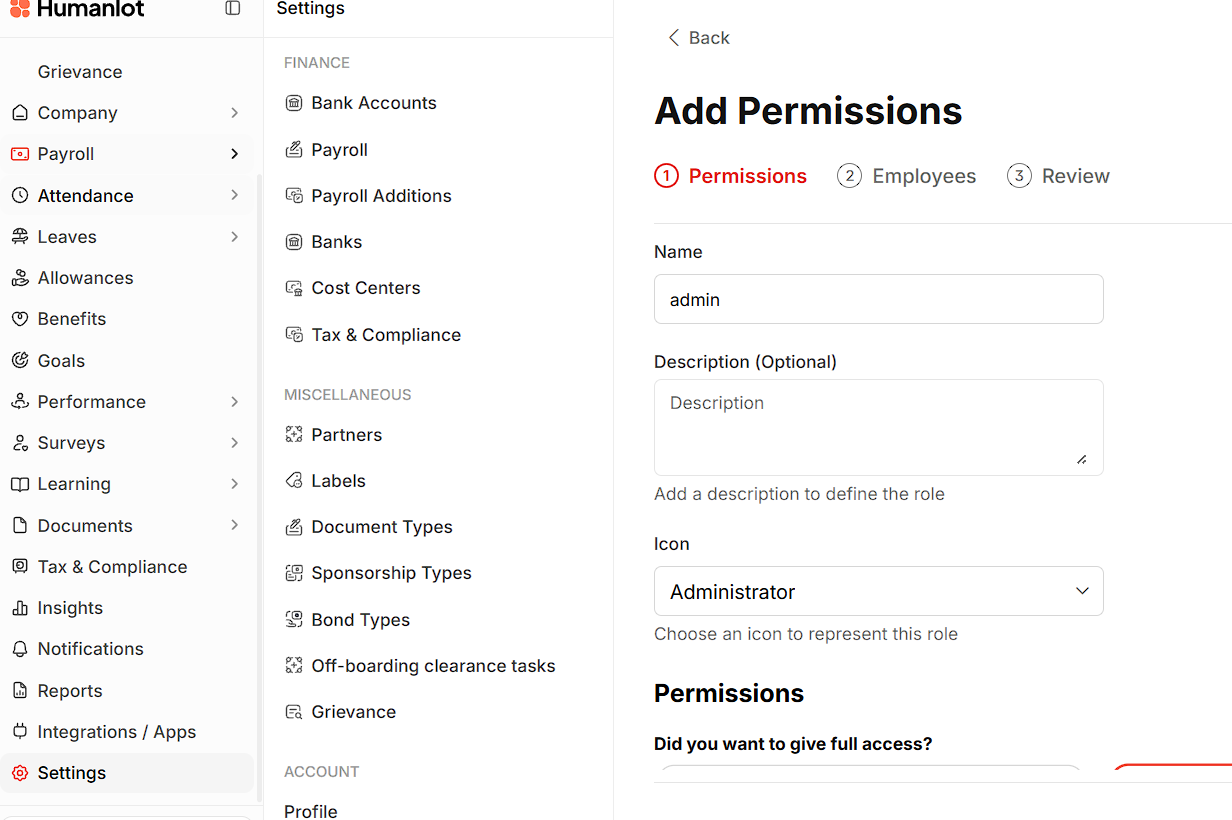
Step 1: Access the Admin Permissions Panel
Log in as an administrator.
Navigate to Admin Dashboard > Settings > Permissions.
Step 2: Create a New Role or Modify an Existing One
To create a new role:
Enter the Name of the role (e.g., Admin, Staff, Manager).
Provide a brief Description.
Click Edit Permissions to assign specific permissions.
Step 3: Assign Permissions
Review the types of permissions available, including but not limited to:
HR Permissions
Attendance
Leaves
Allowances
Benefits
Insights & Trends
Documents
Payroll Permissions
Company Settings
Learning & Training Management
Performance Management & Surveys
Employee Movements
Goals Management
Organization Management
Competency Management
Manage Tax & Compliance
Reports
Sponsorship and Bonds
Employee Offboarding
Grievance Management
Check or uncheck boxes to grant or restrict access accordingly.
Step 4: Assign Employees to Roles
After selecting permissions, click Continue.
Select the employees to assign the role.
Click Continue, then review and update assignments.
(Note: Users may have multiple roles, combining permissions.)

Was this article helpful?
That’s Great!
Thank you for your feedback
Sorry! We couldn't be helpful
Thank you for your feedback
Feedback sent
We appreciate your effort and will try to fix the article