We understand the the duty rosters may not be the same for all employees. Therefore you can easily set up different rosters for employees based on the department, unit, worksite or even individual employees based on their job roles and company policy.
To create the duty roster you will first need to create a group. please follow the following steps:
Go to Attendance > Duty roster
On the bottom left click on the + Add group
Write the name of the shift
Select the employees from the drop down and click add
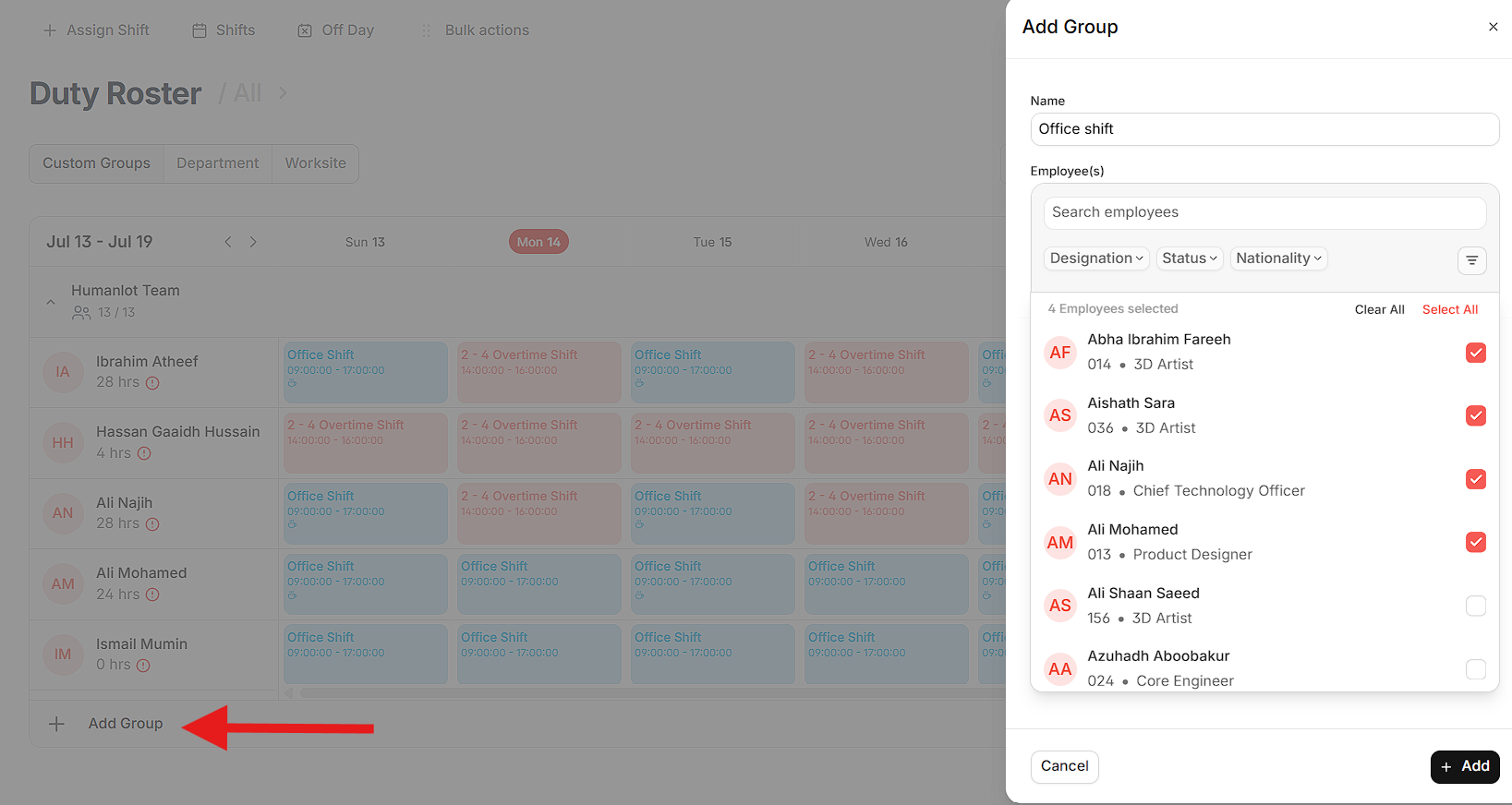
After creating a group you can start assigning employees to shifts.
please follow the following steps:
Go to Attendance > Duty roster
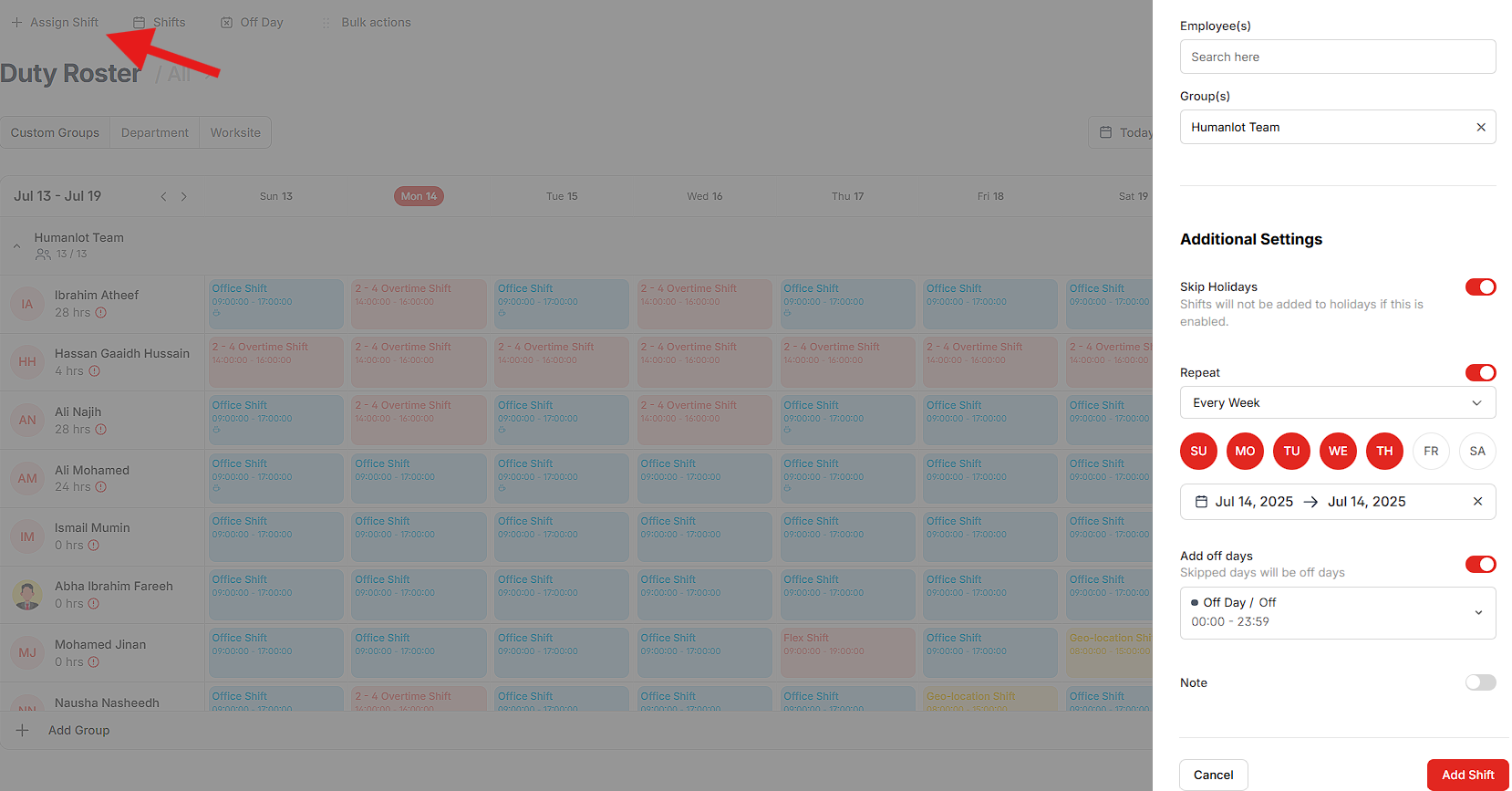
On the top left press + Assign shift
Select date of which the shifts will start
Select shift
Select employee or group
Down below you can find additional settings whether you want to skip holidays or repeat this shift uninterrupted or for specific timelines as required.
Select add shift
Was this article helpful?
That’s Great!
Thank you for your feedback
Sorry! We couldn't be helpful
Thank you for your feedback
Feedback sent
We appreciate your effort and will try to fix the article